Mastering the n8n Ollama Workflow: Architecting a Local AI Email Triage Agent for 2026

 Tram cong nghe AI
Architectural Overview of n8n Ollama Workflow for Local AI Email Triage
The n8n Ollama workflow creates a local AI-powered email triage agent that processes incoming emails autonomously using locally hosted AI models. This architecture integrates n8n, an open-source workflow automation tool, with Ollama, a local AI inference server, and email server connectivity to automate classification, prioritization, and routing of emails without sending data to external cloud services.
The core solution triggers n8n workflows on new email arrivals, sends email content to Ollama’s local API for AI inference, and uses the AI’s structured response to automate email triage decisions. This setup ensures data sovereignty and low-latency processing by running AI models locally.
Below is an architectural diagram illustrating the components and data flow:
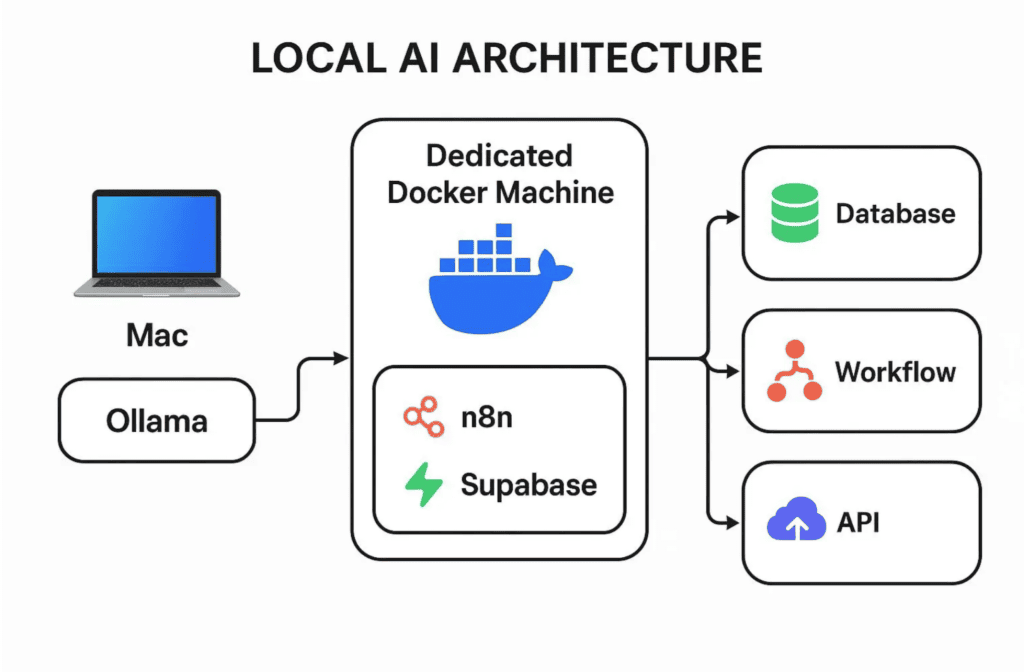
The data flow starts with the email server detecting new messages, triggering n8n workflows via IMAP or webhook nodes. n8n sends the email content to Ollama’s local API for AI inference. Ollama processes the input using a selected AI model and returns structured classification results, which n8n uses to route or flag emails accordingly.
Below is a JSON snippet representing the core n8n workflow export defining the trigger and Ollama API call nodes:
{
  "nodes": [
    {
      "parameters": {
        "mailbox": "INBOX",
        "criteria": "UNSEEN",
        "options": {}
      },
      "name": "Email Trigger",
      "type": "n8n-nodes-base.imapEmail",
      "typeVersion": 1,
      "position": [250, 300]
    },
    {
      "parameters": {
        "requestMethod": "POST",
        "url": "http://localhost:11434/api/chat",
        "jsonParameters": true,
        "options": {},
        "bodyParametersJson": "={\"model\": \"qwen-3.5\", \"messages\": [{\"role\": \"system\", \"content\": \"You are an email triage assistant. Classify the email content into categories: urgent, normal, spam.\"}, {\"role\": \"user\", \"content\": $json[\"text\"]}]}"
      },
      "name": "Ollama API Call",
      "type": "n8n-nodes-base.httpRequest",
      "typeVersion": 1,
      "position": [450, 300]
    }
  ],
  "connections": {
    "Email Trigger": {
      "main": [
        [
          {
            "node": "Ollama API Call",
            "type": "main",
            "index": 0
          }
        ]
      ]
    }
  }
}Local AI Model Inference with Ollama
Ollama runs AI models locally, providing a RESTful API to query models like Qwen 3.5 without sending data externally. Start the Ollama server with:
ollama serve --port 11434This launches the Ollama inference server on port 11434, listening for API requests.
Example curl request querying the Qwen 3.5 model for email triage:
curl -X POST http://localhost:11434/api/chat \
  -H "Content-Type: application/json" \
  -d '{
    "model": "qwen-3.5",
    "messages": [
      {"role": "system", "content": "You are an email triage assistant. Classify emails as urgent, normal, or spam."},
      {"role": "user", "content": "Please review the attached invoice and confirm payment."}
    ]
  }'
To manage Ollama as a background service, create a systemd unit file. Sample ollama.service:
[Unit]
Description=Ollama Local AI Server
After=network.target

[Service]
ExecStart=/usr/local/bin/ollama serve --port 11434
Restart=always
User=ollama
Group=ollama

[Install]
WantedBy=multi-user.target
This ensures Ollama starts on boot and restarts on failure for high availability.
Integration Points Between n8n and Ollama
In n8n, integration with Ollama uses the HTTP Request node configured to call Ollama’s local API. The node specifies POST method, local endpoint URL, and JSON body parameters with model name and prompt messages.
JSON snippet of the HTTP Request node configuration:
{
  "parameters": {
    "requestMethod": "POST",
    "url": "http://localhost:11434/api/chat",
    "jsonParameters": true,
    "bodyParametersJson": "={\"model\": \"qwen-3.5\", \"messages\": [{\"role\": \"system\", \"content\": \"You are an email triage assistant. Classify emails into urgent, normal, or spam categories.\"}, {\"role\": \"user\", \"content\": $json[\"text\"]}]}"
  },
  "name": "Ollama API Call",
  "type": "n8n-nodes-base.httpRequest",
  "typeVersion": 1
}The prompt payload includes a system message defining the AI’s role and a user message with email content extracted by the trigger node. This ensures the AI model understands the task context and provides structured classification results.
For detailed prompt engineering and workflow examples, see the guide on n8n Ollama RAG Workflow on Trạm Công Nghệ AI.
Hardware and Performance Constraints in Local AI Email Triage
Running AI models locally with Ollama depends on hardware, especially GPU availability and system memory. Performance bottlenecks appear as increased latency or resource exhaustion during high email volumes.
System logs like dmesg show GPU initialization and memory pressure events. For example, GPU driver logs confirm initialization, while OOM-killer entries indicate memory exhaustion causing process termination.
[    5.123456] nvidia: loading driver version 525.89.02
[  123.456789] Out of memory: Kill process 1234 (ollama) score 987 or sacrifice child
[  123.456790] Killed process 1234 (ollama) total-vm:2048000kB, anon-rss:1800000kB
Benchmarking CPU vs GPU inference latency shows significant speedups with GPU acceleration. Typical latency for Ollama models:
| Model | Hardware | Average Latency (ms) |
|---|---|---|
| Qwen 3.5 | CPU (8 cores) | 1200 |
| Qwen 3.5 | GPU (NVIDIA RTX 3080) | 350 |
| Claude Code | CPU (8 cores) | 900 |
| Claude Code | GPU (NVIDIA RTX 3080) | 280 |
Impact of Model Size and Context Window on Throughput
Model selection affects throughput and resource use. Smaller models like Deepseek generate tokens faster but with less accuracy; larger models like Claude Code offer better understanding but require more VRAM and CPU cycles.
Ollama supports dynamic model switching via configuration. Example YAML snippet to switch models:
models:
  default: qwen-3.5
  alternatives:
    - claude-code
    - deepseek
Performance logs show token generation speed varies with context window size. Larger context windows (up to 8192 tokens) handle more email content but increase inference time. Monitoring token throughput balances accuracy and latency.
Failure Modes: Resource Exhaustion and Latency Spikes
High email volumes can cause CPU throttling and memory swapping, degrading performance. Use top and nvidia-smi to identify resource bottlenecks:
top -o %CPU
nvidia-smi
Logs showing CPU frequency scaling and swap usage indicate resource exhaustion periods:
CPU0 frequency scaling: 800 MHz (throttled)
Swap usage: 1.2 GB / 2 GB
Proactive resource management and scaling strategies maintain workflow responsiveness under load.
Step-by-Step Implementation of a Robust n8n Ollama Email Triage Workflow
Configure n8n to trigger on new emails, call Ollama for AI classification, and route emails based on AI output.
Complete n8n workflow JSON export for email triage automation:
{
  "nodes": [
    {
      "parameters": {
        "mailbox": "INBOX",
        "criteria": "UNSEEN",
        "options": {}
      },
      "name": "Email Trigger",
      "type": "n8n-nodes-base.imapEmail",
      "typeVersion": 1,
      "position": [250, 300]
    },
    {
      "parameters": {
        "requestMethod": "POST",
        "url": "http://localhost:11434/api/chat",
        "jsonParameters": true,
        "bodyParametersJson": "={\"model\": \"qwen-3.5\", \"messages\": [{\"role\": \"system\", \"content\": \"You are an email triage assistant. Classify the email content into categories: urgent, normal, spam.\"}, {\"role\": \"user\", \"content\": $json[\"text\"]}]}"
      },
      "name": "Ollama API Call",
      "type": "n8n-nodes-base.httpRequest",
      "typeVersion": 1,
      "position": [450, 300]
    },
    {
      "parameters": {
        "conditions": {
          "string": [
            {
              "value1": "={{$json[\"choices\"][0][\"message\"][\"content\"]}}",
              "operation": "contains",
              "value2": "urgent"
            }
          ]
        }
      },
      "name": "Route Urgent",
      "type": "n8n-nodes-base.if",
      "typeVersion": 1,
      "position": [650, 250]
    },
    {
      "parameters": {
        "conditions": {
          "string": [
            {
              "value1": "={{$json[\"choices\"][0][\"message\"][\"content\"]}}",
              "operation": "contains",
              "value2": "spam"
            }
          ]
        }
      },
      "name": "Route Spam",
      "type": "n8n-nodes-base.if",
      "typeVersion": 1,
      "position": [650, 350]
    }
  ],
  "connections": {
    "Email Trigger": {
      "main": [
        [
          {
            "node": "Ollama API Call",
            "type": "main",
            "index": 0
          }
        ]
      ]
    },
    "Ollama API Call": {
      "main": [
        [
          {
            "node": "Route Urgent",
            "type": "main",
            "index": 0
          },
          {
            "node": "Route Spam",
            "type": "main",
            "index": 1
          }
        ]
      ]
    }
  }
}To set up Ollama locally, use this bash script to install dependencies and start the server:
#!/bin/bash
# Install Ollama CLI
curl -fsSL https://ollama.com/install.sh | bash

# Start Ollama server
ollama serve --port 11434 &
Customizing Ollama Prompts for Structured Email Classification
Prompt engineering ensures consistent, structured outputs. Use system prompts to define AI role and user prompts to pass email content. Example prompt template:
{
  "model": "qwen-3.5",
  "messages": [
    {
      "role": "system",
      "content": "You are an email triage assistant. Classify emails into categories: urgent, normal, spam. Respond in JSON format with fields: category, reason."
    },
    {
      "role": "user",
      "content": "{{email_content}}"
    }
  ]
}Sample Ollama output log:
{
  "category": "urgent",
  "reason": "Invoice payment confirmation requested"
}
This structured response allows n8n to parse and route emails programmatically.
Automating Workflow Deployment and Monitoring
Configure systemd service units for n8n and Ollama to ensure continuous operation:
[Unit]
Description=n8n Workflow Automation
After=network.target

[Service]
ExecStart=/usr/local/bin/n8n
Restart=always
User=n8n

[Install]
WantedBy=multi-user.target

---

[Unit]
Description=Ollama Local AI Server
After=network.target

[Service]
ExecStart=/usr/local/bin/ollama serve --port 11434
Restart=always
User=ollama

[Install]
WantedBy=multi-user.target
Health check scripts monitor service status and rotate logs to prevent disk space issues. Example bash health check:
#!/bin/bash
if ! systemctl is-active --quiet n8n; then
  systemctl restart n8n
fi
if ! systemctl is-active --quiet ollama; then
  systemctl restart ollama
fi
Alerting can integrate with Prometheus or Grafana to notify on workflow failures.
Security and Privacy Considerations in Local AI Email Processing
Running AI inference locally with Ollama ensures data sovereignty by preventing email content from leaving the local network. Firewall rules should restrict Ollama API access to localhost only.
Example iptables rules to restrict access:
iptables -A INPUT -p tcp --dport 11434 -s 127.0.0.1 -j ACCEPT
iptables -A INPUT -p tcp --dport 11434 -j DROP
In n8n, enable credential encryption to protect sensitive email server credentials. Audit logs should be reviewed regularly to detect data leakage.
Ensuring Data Sovereignty with Local Model Execution
Ollama’s local-only inference mode guarantees no data is transmitted externally. Network captures with tcpdump confirm zero outbound connections during AI queries:
tcpdump -i eth0 port 11434 -w ollama_traffic.pcap
# Analyze pcap file to confirm no external IPs contacted
This setup complies with strict data privacy regulations by keeping all email content and AI processing on-premises.
Hardening the n8n Ollama Workflow Against Unauthorized Access
Secure Ollama API endpoints by implementing OAuth or API key authentication in n8n HTTP Request nodes. Example header configuration:
{
  "headers": {
    "Authorization": "Bearer YOUR_API_KEY"
  }
}Use fail2ban or iptables rules to block repeated unauthorized access attempts:
[ollama-api]
enabled  = true
port     = 11434
filter   = ollama-api
logpath  = /var/log/ollama/access.log
maxretry = 5
findtime = 10m
bantime  = 1h
These measures protect the local AI service from brute force and unauthorized usage.
For further details on n8n node configurations and workflow automation best practices, consult the official n8n HTTP Request node documentation.